AI-powered data modeling features in erwin Data Modeler (erwin DM) are designed to simplify and accelerate your modeling workflows. With AI assistance, you can generate starter-level data models and validate DDL scripts and reduce manual effort and minimize errors. This helps you save time and improve overall efficiency.
Prerequisites
Ensure that you have:
-
purchased the erwin DM AI Add-On.
-
access to the Quest Licensing portal.
-
internet connectivity for key generation and validation
-
access to erwin Mart Portal
-
AI credentials
-
AI License Key: This is available in the welcome email or under your active license details in the Quest Licensing Portal.
-
Client ID and Client Secret: These can be generated in the My Access Keys section of the Quest Licensing Portal.
-
To purchase a license for the erwin DM AI Add-On, contact your Sales representative or visit the Quest Sales page to request the AI Add-On. Complete the purchase process as guided by the sales team. After the purchase is confirmed, you will receive a welcome email with your license information and instructions to access the Quest Licensing Portal.
The general workflow to use AI-powered data modeling includes the following steps:
Configuring Licenses, Users, and Feature
After you have a license for the erwin DM AI Add-On, do the following:
 Assigning Users to Licenses
To assign users to an activated license in the Quest Licensing Portal, follow these steps:
-
Log in to the Quest Licensing portal using the same email address that received the welcome email.
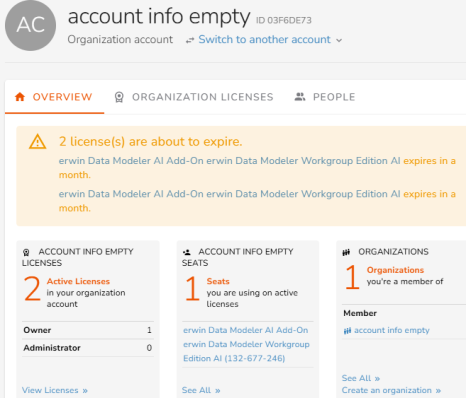
The account info empty page appears. By default, the Overview tab opens and displays the active licenses.
-
On the Overview tab, under Account Info Empty Licenses, click View Licenses.
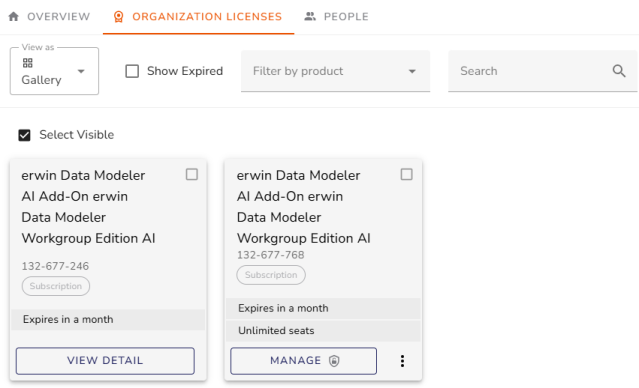
The Organization Licenses tab opens, and you can view your active license here.
-
On the active license, click Manage.
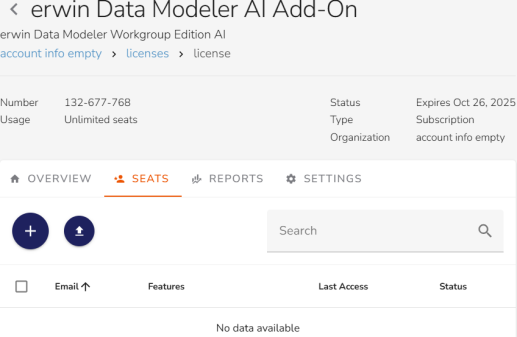
The license page opens.
-
Click the Seats tab and click
 to assign users.
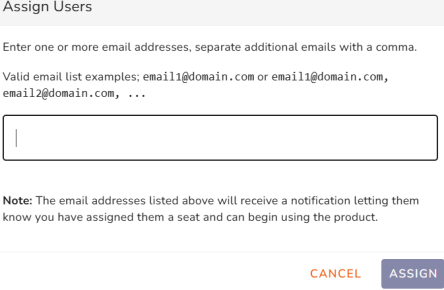
 The Assign Users dialog box appears.
-
Enter your email address and click Assign.
Enabling AI Add-On
Once the users are assigned, you need to enable the AI feature.
To enable the AI feature, follow these steps:
-
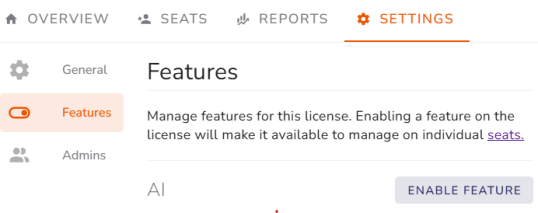
On the Settings tab, click Features.
-
Under Features, click Enable Feature.
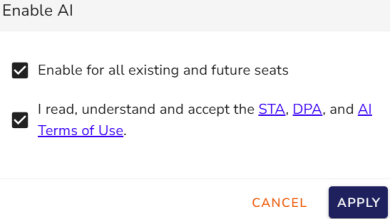
The Enable AI dialog box appears.
-
Review and accept the terms of usage, then click Apply.
Creating Access Keys
You can now create the access key required to enable AI features.
To create access keys, follow these steps:
-
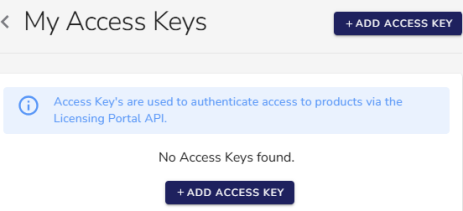
On the Profile menu, select My Access Keys or go to https://licensing.ism.quest.com/user/access-keys.
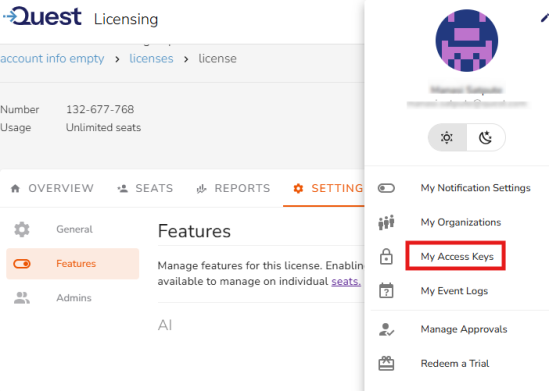
The My Access Keys page opens.
-
Click Add Access Key.
-
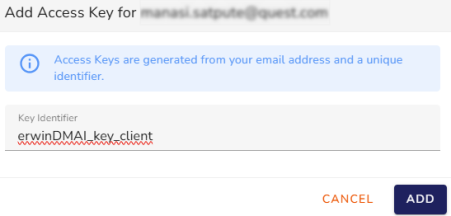
Enter a key identifier in the corresponding field, and then click Add.
For example, erwinDMAI_key_client.
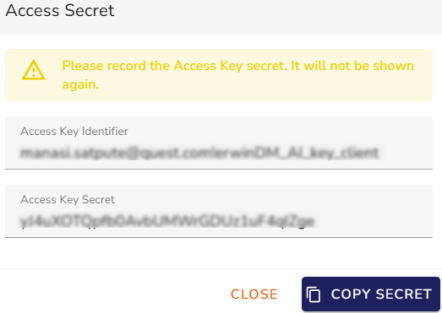
The access key is generated with a combination of your email address and this unique identifier.In the Access Secret dialog, Access Key Identifier and Access Key Secret are displayed.
-
Click Copy Secret to copy and save the Access Key Secret. It will not be displayed again.
Enabling AI Licenses
By default, AI features are disabled. To enable them, you need to configure your AI Add-On license via erwin Mart Portal and ensure that erwin DM is connected to the erwin Mart Portal.
To enable AI features, follow these steps:
-
Log in to the erwin Mart Portal.
-
Go to Application Menu > Settings > General.
The General page appears.
-
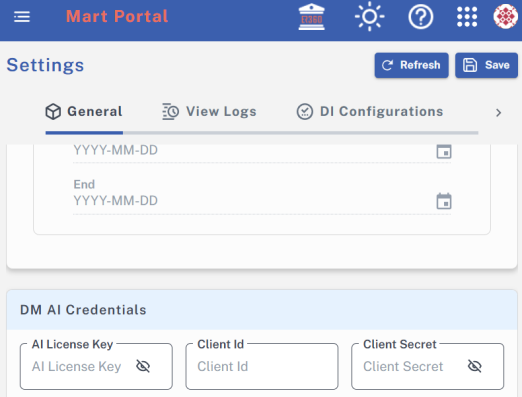
Scroll to the DM AI Credentials section.
-
Enter your AI license key, client ID, and client secret in the appropriate fields.
-
Click Save.
Your AI credentials are saved, and AI features are enabled in erwin DM.
You can also use erwin AI to generate and update business term descriptions and definitions in Enterprise Glossary on erwin Mart Portal. For more information, refer to the Add Business Terms topic.
Using AI for Data Modeling
You can use AI for data modeling in erwin DM for the following tasks:
-
Data model creation using natural language prompts:
-
DDL scripts validation:
As an example, this section walks you through the process of working on MongoDB models using AI. Similarly, you can work on data models for other databases.
Creating Data Models
You can use AI to create starter-level data models using simple natural language prompts. This enables you to generate foundational models and then refine or expand them to meet specific requirements.
To create models using AI, follow these steps:
-
In erwin DM, connect to erwin Mart Portal.
-
Click File > New.
The New Model screen appears.
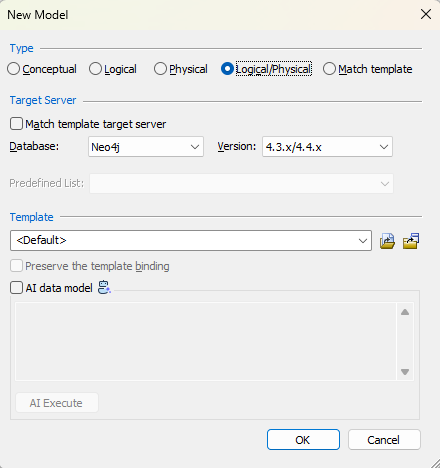
The Conceptual model and AI data model features are available starting erwin DM 15.2.
-
Click Logical, Physical, or Logical/Physical based on the model type that you want to create.
-
In the Database list, select the database, and then in the Version list, select the appropriate version.
-
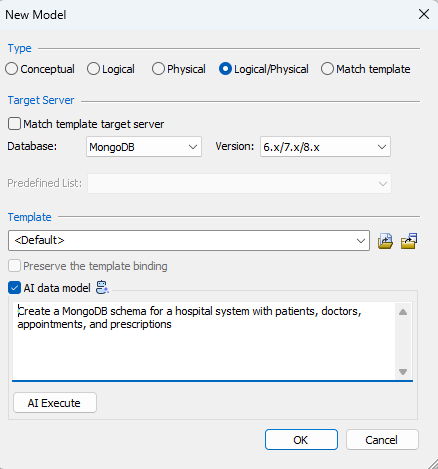
Select the AI data model checkbox.
Clicking this option enables the prompt box.
-
Enter your model description in the AI prompt box.
For example, Create a MongoDB schema for a hospital system with patients, doctors, appointments, and prescriptions.
-
Click AI Execute.
Based on your prompt, a script is generated. You can review, edit, save, and reuse this script. Or you can also cancel the script and modify your prompt.

-
Click OK.
-
Then, click OK.
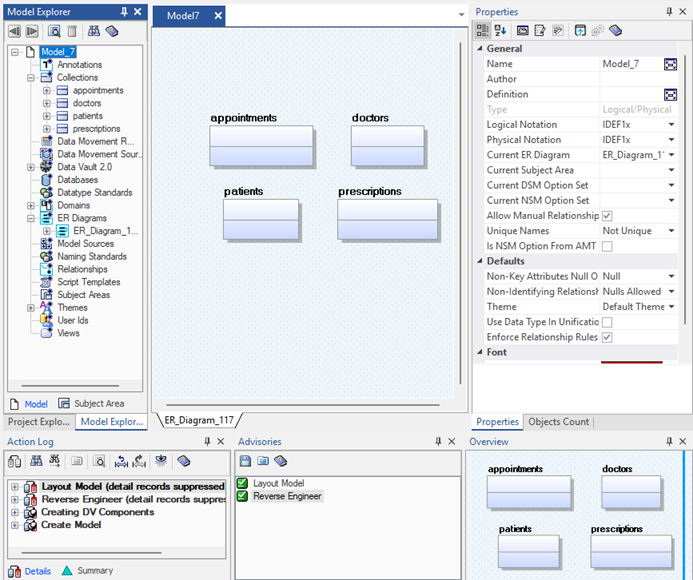
A logical/physical model is created based on the generated script. The model has four collections, appointments, doctors, patients, and prescriptions according to the prompt.
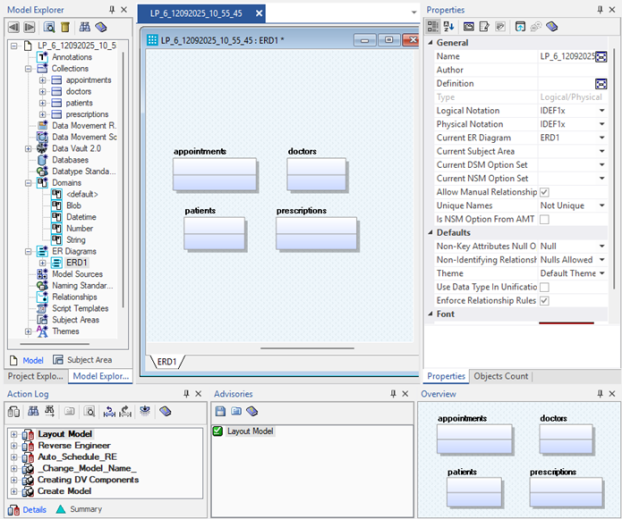
You can use this model as a base and build it further.
Reverse Engineering Data Models
You can reverse engineer data models using a DDL script generated using model description in natural language. Based on the description, AI generates a script and the corresponding model.
To reverse engineer data models using AI, follow these steps:
-
In erwin DM, click Actions > Reverse Engineer.
The New Model screen appears.
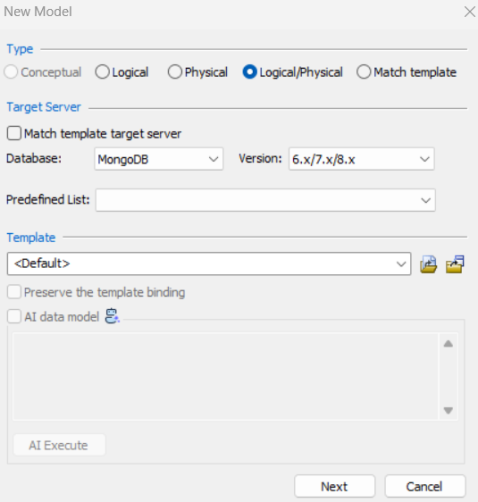
The Conceptual model and AI data model features are available starting erwin DM 15.2.
-
Click Logical/Physical and select a Database.
For example, we will reverse engineer a MongoDB model.
-
Click Next.
The Reverse Engineering Wizard appears.
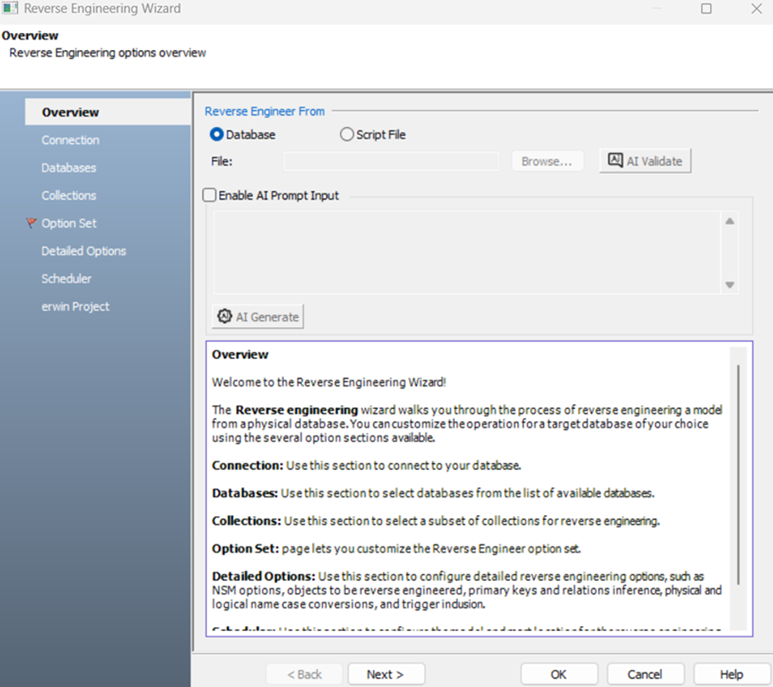
-
Select the Enable AI Prompt Input checkbox.
Clicking this option enables the prompt box.
-
Enter your model description in the prompt box.
For example, Create a MongoDB schema for a hospital system with patients, doctors, appointments, and prescriptions.
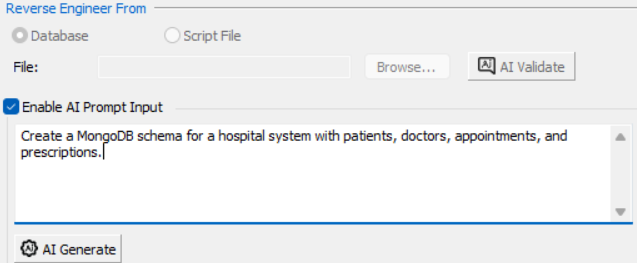
-
Click AI Generate.
The AI-generated script based on your description is displayed. You can review, edit, save, and reuse this script.
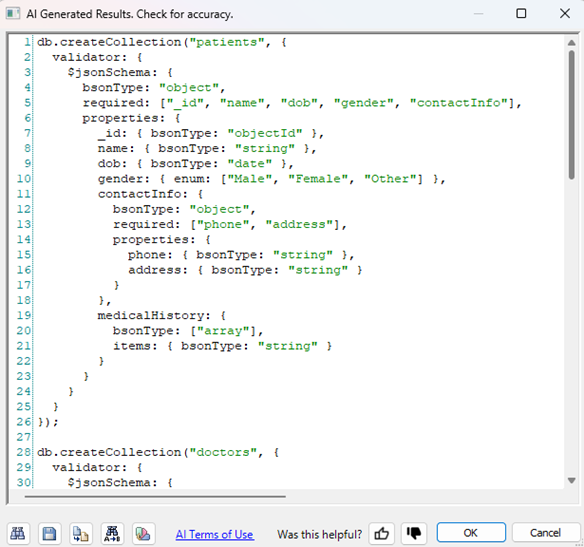
-
Click OK.
-
Enter appropriate values in the fields for the other tabs.
-
Click OK.
The reverse engineering process starts.
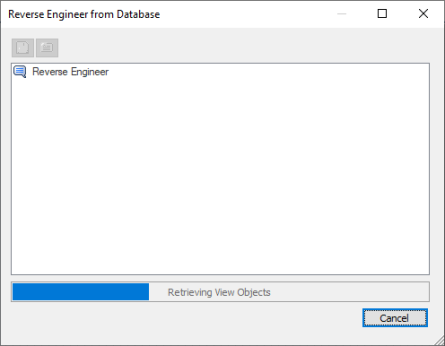
Once the process is complete, a schema and a model are generated based on your natural language prompt.
Validating DDL Scripts during Reverse Engineering
Before using any DDL script for reverse engineering, you can validate it using the AI assistant.
To validate DDL scripts, follow these steps:
-
In erwin DM, click Actions > Reverse Engineer.
The New Model screen appears.
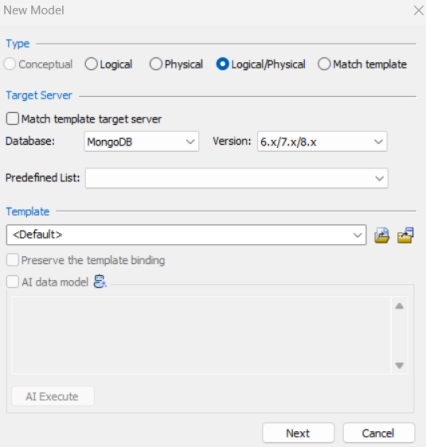
The Conceptual model and AI data model features are available starting erwin DM 15.2.
-
Click Logical/Physical and select a Database.
-
Click Next.
The Reverse Engineering Wizard appears.
-
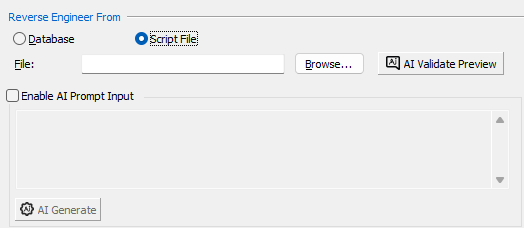
Click Script File.
Clicking this option enables the File field and the AI Validate Preview button.
-
Click Browse and select your script file.
-
Click AI Validate Preview.
AI reviews the script and displays results accordingly in the following scenarios:
-
Scenario 1: Script is correct
When you upload a syntactically correct script, a confirmation message appears. For example, The script you posted for MongoDB is syntactically correct.

-
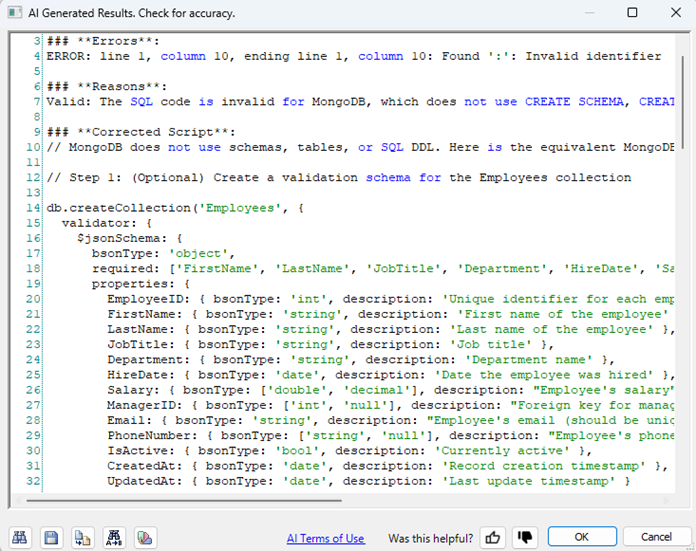
Scenario 2: Script contain errors
When your script has syntax errors, the validation result displays error information along with suggestions to help you fix them.
-
Validating DDL Scripts during Forward Engineering
Before forward engineering models, you can validate schema scripts using the AI assistant.
-
Open your model in erwin Data Modeler.
For example, open a MongoDB model.
Ensure that you are in the Physical mode.
-
Click Actions > Schema.
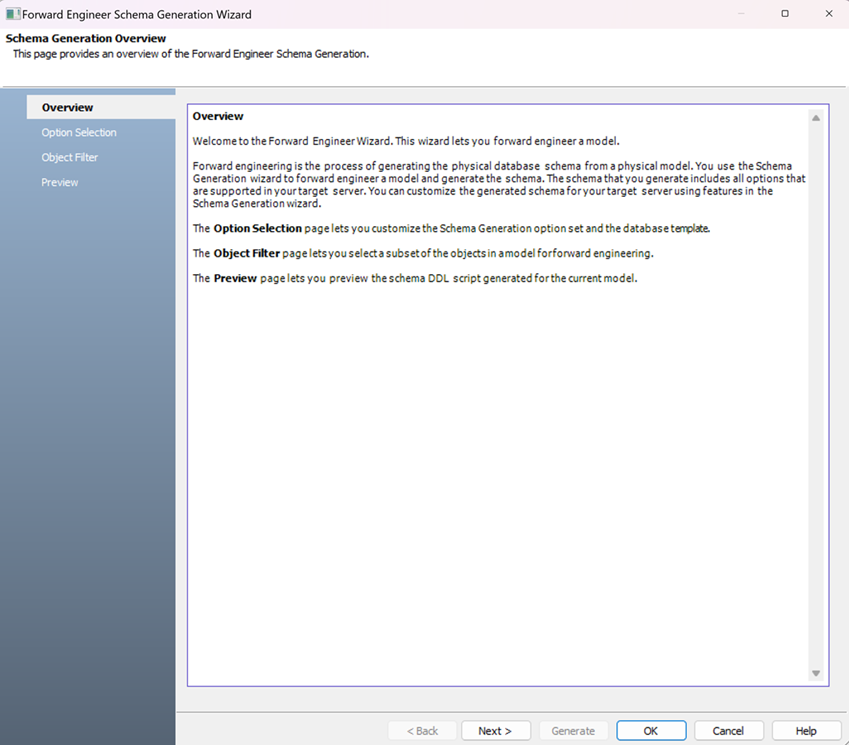
The Forward Engineer Schema Generation Wizard appears.
-
Select appropriate options on the Option Selection and Object Filter tabs.
-
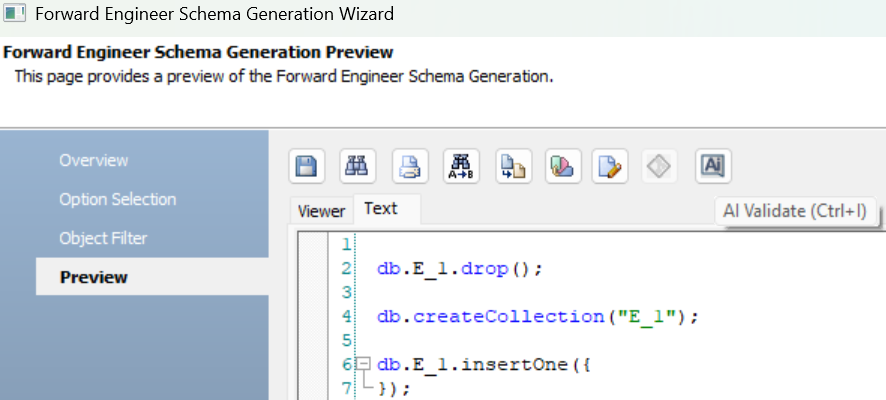
Click Preview to view the schema script.
-
Click
 .
.AI reviews the script and displays results accordingly in the following scenarios:
-
Scenario 1: Script is correct
When the generated script is syntactically correct, a confirmation message appears. For example, The script you posted for MongoDB is syntactically correct.
-
Scenario 2: Script contains errors
When your script has syntax errors, the validation result displays error information along with suggestions to help you fix them.
-
Click OK.
-
Click Generate.
The forward engineering process starts. The script generates your physical database schema. You can access your database and verify the newly generated schema.
The AI Validate Preview feature has token limitations. If your script is too long, it may be truncated or generation or validation may fail. During validation, syntax or keyword mismatches may also occur due to differences in supported database versions. In such cases, you must manually correct the script before running it.
For any AI-generated DDL scripts, you also use the following options:
-
Search (
 ): Use this option to search for a word or characters in the schema.
 -
Save (
 ): Use this option to save the generated script.
 -
Copy (
 ): Use this option to copy the script.
 -
Replace (
 ): Use this option to find and replace characters in the script.
 -
Text Options (
 ): Use this option to configure the preview text editor's look and feel, such as window, font, and syntax color settings.
 -
AI Terms of Use: Use this option to view terms and conditions for AI features in erwin DM.
-
Was this helpful?: Use this option to provide feedback on the AI features. Click
 or
or  , add your comments, and then, click Submit.